
Arrange your storefront page
Reorder the blocks of your shop, hide the ones you do not need, and write the words in them.
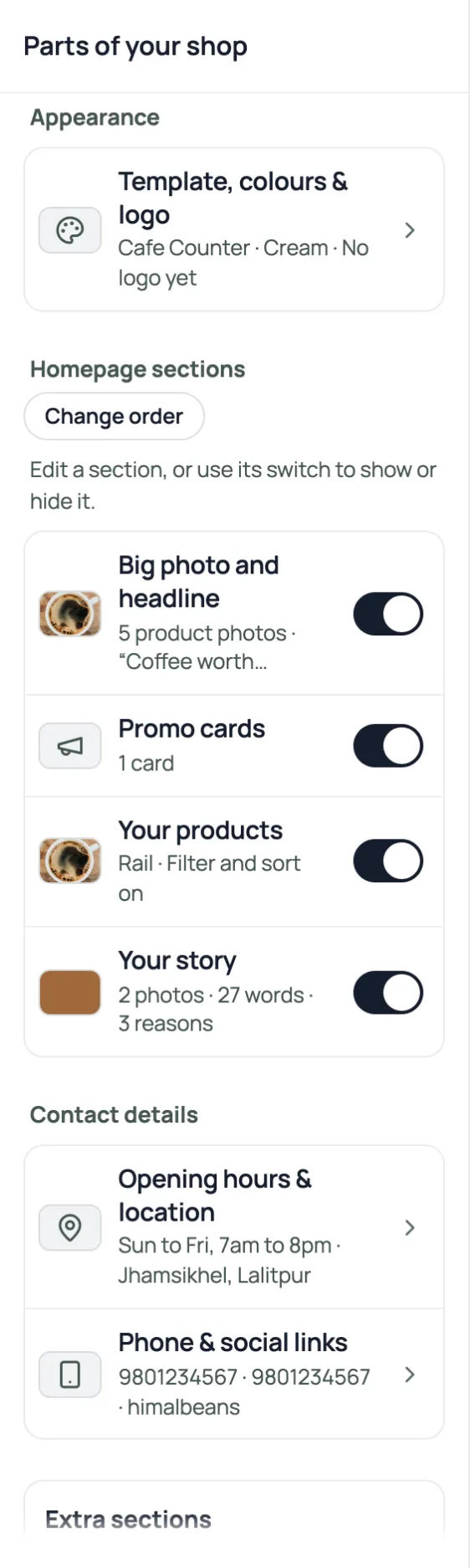
Open Design and tap the part of your shop you want to change, or choose it in Parts of your shop, the list of every part in the order a customer meets them. On a computer the list is the left column, your shop is in the middle, and a part's choices open on the right; on a phone the list is the page, Preview at the top shows your shop, and a part opens from the bottom. The arrows beside a part's name step to the next part. Contact details come before the expandable extra sections.
Appearance
Template, colours & logo holds the design, palette, logo and type. Read the template guidebefore changing the overall layout.
Homepage sections
Open Big photo and headline, Promo cards, Your productsor Your story to edit that part. The map shows a summary before you open it. A switch beside a supported part controls whether it shows. A hidden part keeps its content, so turning it back on does not mean writing it again.
Press Change order for the ordering controls offered by your design. Some templates control their own section order; Durbar does not offer the same free order as every other design. Check the preview instead of assuming all designs support the same blocks.
Extra sections for Shobha and Durbar
The map groups Figures, Photo gallery, What customers say,Your team and Packages in the expandable Extra sections group. Those sections appear on supporting designs. Open one to add or edit its rows and check the preview.
Contact details
Opening hours & location and Phone & social links hold contact details used across the shop, and like the look of your shop they go live when you press Publish. The profile's legal and account details have their own settings.
Edit from the preview
Tap a supported part in the preview to open its settings. The preview shows your changes straight away; Refresh reloads it if needed. Customers see them when you press Publish, and a trial marked Not saved needs Save this look. Open the real shop to check what is live.
- Pick a template, keep your coloursSwap the whole look of your shop in one tap, and put your own colours back if the new ones are not yours.
- Add your own 360° photos or a 3D product modelLet shoppers rotate a set of product photos or explore a GLB model, alongside the usual gallery.
- Make the shop look like yoursTemplate, colours, logo, hero photo, and the order of the page, all from the Design tab.