
Get alerted for every new order
Get the Retriever app and turn on notifications so nothing is missed.
The order board updates live, but you can also get a buzz on your phone the moment an order or booking comes in.
The same switch also rings the owner's phone when a customer on Instagram or Messenger asks to talk to a person (they type HUMAN or tap Talk to team). That alert names the channel only, never the customer or their message, and comes at most once an hour for each customer. It goes to the devices of the owner who connected that channel, not to staff.
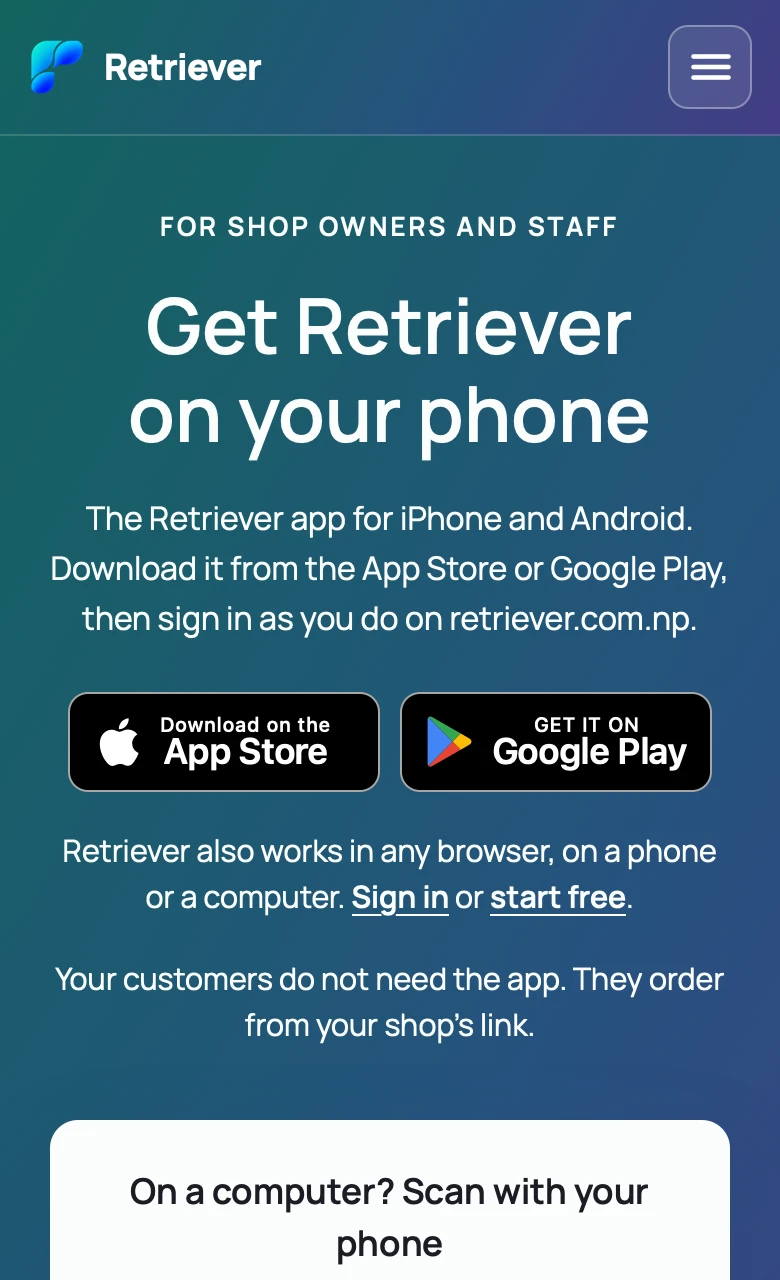
- Get the app. Download Retriever from the App Store or Google Play and sign in with the same email. On a computer, open retriever.com.np/app and scan its code with your phone, or choose Get the app in the dashboard and email yourself the link. Customers still order from your link. They do not install anything.
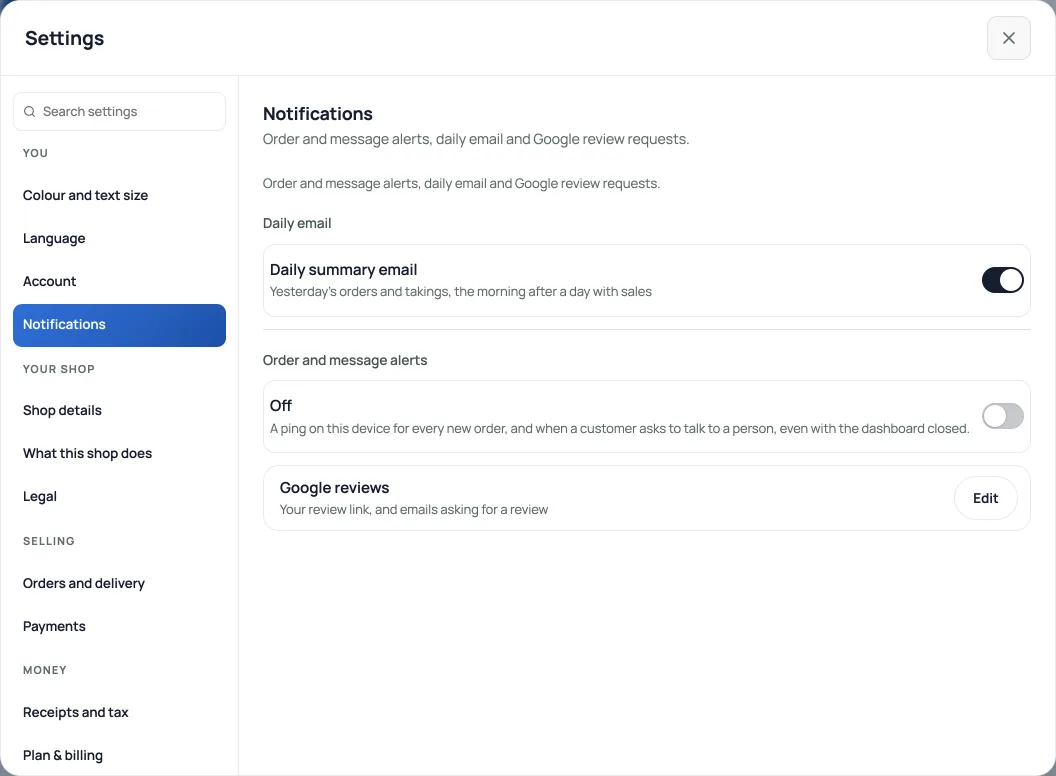
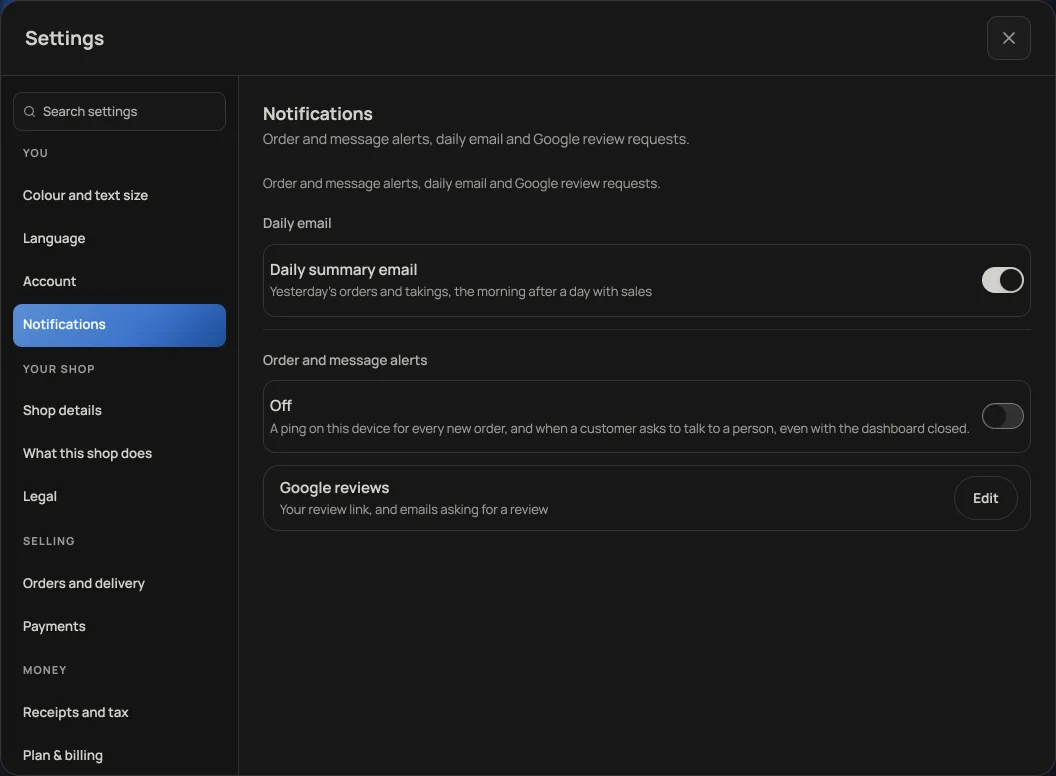
- Turn on alerts. Open your account menu, choose Settings, then Notifications, and switch on Order and message alerts to allow notifications.
- Prove it. Press Test this device, just under the switch. One alert comes straight to this phone. If nothing arrives within a few seconds, the line under the switch says why.
Now new orders reach you even when the shop is not open on your screen.
Alerts belong to a device, not to the shop. Every phone and laptop that should buzz is switched on once, on that device. The Retriever app has the switch from the first screen. On an iPhone, use the app: Safari on its own cannot show order alerts, and the row says so in place of a switch.
If the switch will not go on, read the sentence under it. It names the thing that stopped it: a blocked permission, a device that is offline, a page that needs reloading. Nothing here fails quietly any more.
- Managing orders on your boardMove tickets through fulfilment, collect payment, and keep the board tidy.
- Take bookings and reservationsLet customers reserve a table or a slot, and manage them on the Bookings tab.
- Print receipts on a thermal printerConnect a 58mm or 80mm roll printer and print from the counter or any past order.